 VGarage

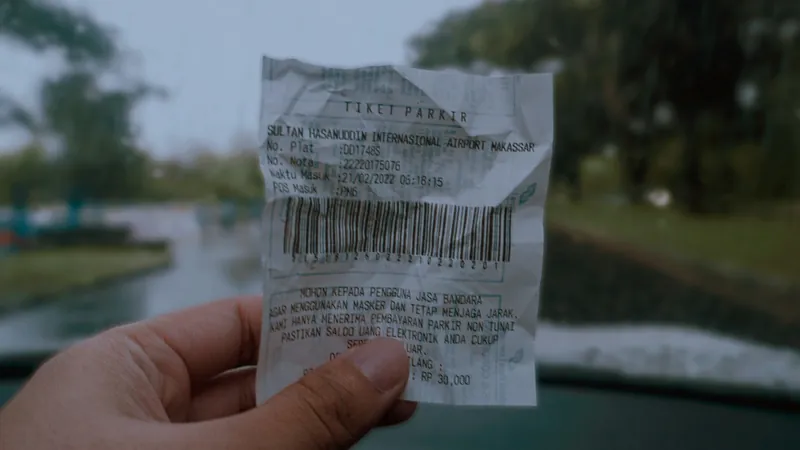
The fastest way to log a fill-up in VGarage is to let your iPhone read the numbers for you. Start a fill-up, point the camera at the receipt or the pump display, and VGarage fills in the numbers. It can read the odometer from a photo of your dashboard too. The scan runs on your iPhone with Apple's text recognition, so the photo stays on your phone. All that's left is a quick check and two taps: whether you filled the tank, and whether you missed logging a fill-up before this one.
The short version
- Tap + and choose a fill-up, then scan the receipt or the pump instead of typing.
- Scan the odometer from a photo, so you don't have to remember it.
- Check the numbers before you save. A scan is fast, but you're the final word.
- Mark full or partial, and mark a missed fill-up if there was one, so your economy stays right.
Why scanning helps
Most fuel logs fail at the pump, not in the app. You're in a hurry, the attendant is waiting, and typing the odometer, the litres and the price feels like a chore. You tell yourself you'll do it later, and later never comes. One missed fill-up and your average is off for that stretch.
Scanning turns that into a few seconds. Take the receipt, point, check, save. And because you're doing it right there, the numbers are the real ones, not a guess from memory that evening.
How to log a fill-up by scanning
- Tap + and choose a fill-up.
- Scan the receipt or the pump display. VGarage reads the numbers and fills them in.
- Scan or type the odometer. A photo of the dashboard works, so take one before you drive off.
- Check what was filled in: the odometer, the volume and the price per litre. VGarage works out the total.
- Mark whether you filled the tank, and whether a fill-up before this one wasn't logged.
- Save.
If you allow location access, VGarage also pins where you are and suggests the nearest stations. Don't want the location on this one? Tap the ✕ to leave it out. It's only used while you use the app, never in the background.
Receipt, pump or odometer: which to scan
- The receipt is the best record: it usually shows the litres, the price per litre and the total in one place, and it's printed, so it reads cleanly. Ask for one at every fill-up.
- The pump display is handy when there's no receipt, or the printer's out of paper. Scan it right after the pump stops, before it's reset for the next car.
- The odometer is the number people forget most. A quick photo of the dashboard, taken before you leave the station, fixes that.
Tips for a clean scan
- Flatten the receipt. A curled or folded slip is harder to read. Lay it on your knee or the dashboard.
- Find some light. Station canopies at night can be dim, and thermal paper is pale. Turn the receipt toward the light.
- Fill the frame with the numbers you need, and hold steady for a moment.
- Mind glare on the pump display and on the dashboard glass. Tilt the phone slightly if the digits wash out.
- Scan the odometer with the car on, so the display is lit and showing the total, not the trip meter.
Common mistakes
- Saving without a glance. Text recognition is good, not perfect. A 1 read as a 7 in the odometer throws off that stretch, so check the numbers before you save.
- Scanning the trip meter instead of the odometer. Make sure the dashboard is showing the total kilometres.
- Forgetting the full-tank mark. Fuel economy is worked out from full tank to full tank. A partial fill marked as full makes the next number wrong.
- Not marking a missed fill-up. If you skipped logging one, say so. VGarage leaves that stretch out, so one missed receipt doesn't spoil the average.
- Throwing the receipt away first. Scan it at the pump, then bin it.
What happens to the numbers
Each fill-up goes into your car's history. VGarage works out your fuel economy from full tank to full tank, partial top-ups included, and shows it as km/L or L/100 km. Stats and charts show economy and price per litre over time, and your spending by month. The method is the same one in how to calculate fuel consumption, just without the arithmetic.
Your garage stays on your iPhone unless you sign in with Apple or Google to sync it across devices.
Set it up in VGarage
To get the most out of scanning in VGarage:
- Add your car, or each car in the family, so every fill-up lands in the right history.
- Choose your units: km/L or L/100 km.
- Start with a full tank. Your first full fill is the starting line; the economy shows from the next one.
- Allow location if you want stations pinned to each fill-up. It's optional.
The VGarage FAQ has more on scanning, fuel economy and where your data is stored. If you track running costs too, car expense categories is a good next read.
Track it with VGarage
VGarage keeps every fill-up, service and cost for all your cars on iPhone: scan the pump and the receipt, get service reminders by date or odometer, and see what each car really costs to run.