VGarage

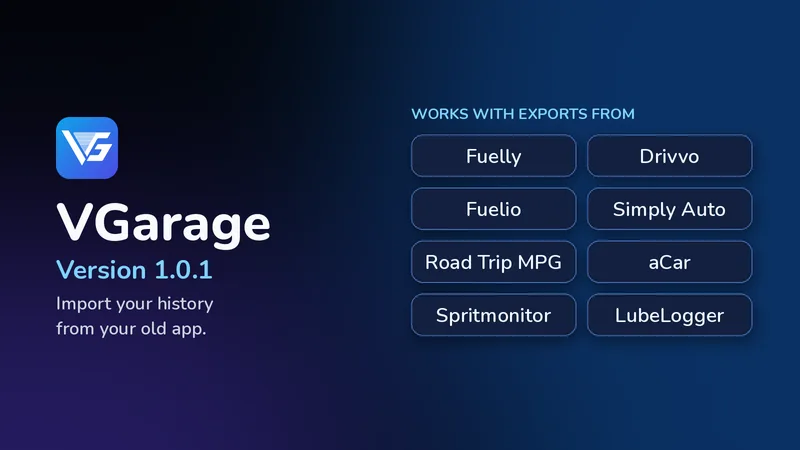
VGarage 1.0.1 lets you bring your history over from your old app. If you've been logging fuel in Fuelly, Drivvo, Fuelio or another app, you can now export your file, choose it in VGarage, look over what it found, and import it. The update also fixes two bugs: fuel economy in miles per gallon was shown wrongly, and the upgrade sheet did not open when you added a 4th car on the free plan.
The short version
- New: Import from another app. Fuelly, Drivvo, Fuelio, Simply Auto, Road Trip MPG, aCar, Spritmonitor and LubeLogger.
- Checked before it's saved. A check screen shows the units, each car's totals and any warnings before anything is added.
- Fixed: miles per gallon. A garage set to miles and gallons showed the wrong economy. It now follows your distance and volume units.
- Fixed: the 4th car. On the free plan, adding a 4th car now opens the upgrade sheet.
Import from another app
Switching apps shouldn't mean starting from zero. Here's how it works:
- In VGarage, open the You tab, then Settings, then Data & backup, then Import from another app.
- Pick your old app from the list to see how to export from it. Or skip that and just choose the file: VGarage works out which app made it.
- Export your history from the old app and save the file to Files on your iPhone. Some apps make one file per car, so you can choose several files at once.
- Choose the file or files in VGarage and read the check screen.
- Tap the Import button, which says how many entries it will add. Your history goes into a new car or one you already have, and your existing entries aren't changed.
The check screen
Nothing is saved until you've seen this screen. It shows:
- Units. The distance and volume units found in the file, with dropdowns if you need to change them. Miles and gallons are converted to the units in your VGarage Preferences. Money amounts are copied as they are, because VGarage doesn't convert currencies.
- Each car. How many entries it has, the dates they cover, the last odometer reading, the money spent and the average fuel economy.
- Where it goes. Into a new car or one you already have.
- Duplicates. Entries VGarage already has are skipped and counted.
- Warnings. Anything that looks off in the file, and a list of any rows that couldn't be read, with the line number and the reason.
- The free plan's 3-car limit. If the import would take you over it, the screen says so and the Import button stays off until you add some of the cars to one you already have, switch some off, or upgrade to Pro.
- A starting odometer. Some files only list trips, with no odometer reading. For those, you enter where the odometer started.
A few rules
Import one app at a time. Each app writes its own units and layout, so a mix of files from different apps is refused. Files from the same app that use different units are fine: VGarage converts them. And if you import the same file twice, the second time adds nothing, because every duplicate is skipped.
The import page lists all eight apps. For step-by-step export instructions, see the pages for Fuelly, Drivvo and Fuelio. Not on the list? Data & backup also has Import CSV, which lets you match the columns of a spreadsheet yourself.
Fixed: fuel economy in miles per gallon
If your garage was set to miles and gallons, the fuel economy VGarage showed was wrong. A car doing 30 mpg showed as 70.6 MPG. The number you'd logged was fine, but it wasn't converted for your units before it was displayed.
It's fixed. Fuel economy now follows your distance and volume units, so 30 mpg shows as 30.0 MPG, and the same car shows as 12.8 km/L if you switch the display to km/L. If you're not sure which unit suits you, km/L, mpg and L/100 km explained compares them, and how to calculate fuel consumption shows the sums by hand. Garages in kilometres and litres were never affected.
Fixed: adding a 4th car on the free plan
The free plan holds 3 cars. When you tried to add a 4th, the upgrade sheet was supposed to open, but an error stopped it and nothing happened. Now it opens as intended, so you can see what Pro adds. The FAQ explains what's free and what comes with Pro.
What's next
Once your old history is in, VGarage's charts and totals have more to work with. The true cost of owning a car shows what to look for, and scanning fuel receipts on iPhone keeps new entries quick. If you're new here, start with VGarage is on the App Store.
Is your old app missing from the list, or did an import not read your file the way you expected? Tell us on the support page. Reports like that decide which apps come next.
Track it with VGarage
VGarage keeps every fill-up, service and cost for all your cars on iPhone: scan the pump and the receipt, get service reminders by date or odometer, and see what each car really costs to run.